> ## Documentation Index
> Fetch the complete documentation index at: https://dripart-docs-custom-nodes-sdk-v2-frontend.mintlify.site/llms.txt
> Use this file to discover all available pages before exploring further.

# ComfyUIでBria背景除去を使用する

> ComfyUIでBriaパートナーノードを使用して、画像・動画の背景除去、グリーンスクリーン、背景置換を行う方法を学びます

BriaのAI背景処理モデルは、パートナーノードを通じてComfyUIで利用できるようになりました。このページでは、**画像背景除去**、**ビデオ背景除去**、**透明ビデオ背景**、**ビデオグリーンスクリーン**、および**ビデオ背景置換**について説明します。

## Bria背景除去が得意なこと

* **画像背景除去**: 画像の背景を自動的に除去し、透明な背景を持つ結果を出力します
* **ビデオ背景除去**: ビデオの背景を選択した単色に置き換えるか、透明なビデオを出力します

* **ビデオグリーンスクリーン**: プロ仕様のクロマキー緑または青のスクリーン効果を適用します。プリセットには broadcast\_green、chroma\_green、blue\_screen が含まれます
* **ビデオ背景置換**: ビデオの背景をカスタム画像または別のビデオに置き換えます
* **ショートフォームビデオサポート**: ビデオ背景処理は最大60秒の入力ビデオを受け付けます

## 出力例

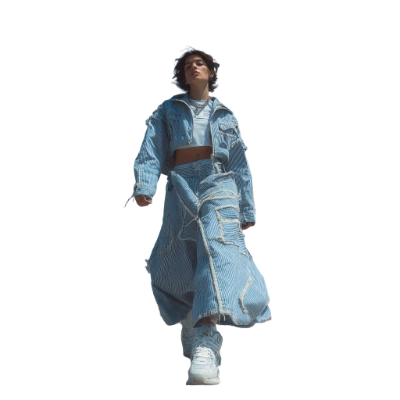
画像の背景除去を行い、被写体を透明な背景で返します：

![Bria: Remove Image Background の出力例](https://raw.githubusercontent.com/Comfy-Org/workflow_templates/main/output/utility_bria_remove_image_background.png)

<Tip>
  APIノードを使用するには、正しくログインしていることと、許可されたネットワーク環境で使用していることを確認する必要があります。APIノードの使用に必要な具体的な要件については、ドキュメントの「[APIノードの概要](/ja/tutorials/partner-nodes/overview)」セクションをご参照ください。
</Tip>

<Tip>
  <Tabs>
    <Tab title="ローカルユーザー">
      ComfyUI が最新版に更新されていることを確認してください。

      * [ComfyUI のダウンロード](https://www.comfy.org/download)
      * [更新手順](/ja/installation/update_comfyui)

      このガイドで紹介するワークフローは、[ワークフローテンプレート](/ja/interface/features/template)から入手できます。
      テンプレート内に該当のワークフローが見つからない場合、ComfyUI のバージョンが古くなっている可能性があります。

      ワークフローを読み込んだ際にノードが欠落している場合の考えられる原因：

      1. 最新の ComfyUI（Nightly 版）を使用していない
      2. 起動時に一部のノードのインポートに失敗している
    </Tab>

    <Tab title="クラウドユーザー">
      * [Cloud](https://cloud.comfy.org) は、ComfyUI の安定版リリース後に更新されます。

      したがって、このドキュメントでコアノードが見つからない場合、それは新しいコアノードがまだ最新の安定版にリリースされていない可能性があります。次回の安定版リリースをお待ちください。
    </Tab>
  </Tabs>
</Tip>

<h3 id="utility_bria_remove_image_background">
  Bria: 画像背景除去
</h3>

画像をアップロードすると、Bria API を使用して背景が自動的に除去されます。結果は透明な背景の画像として返されます。
<img src="https://raw.githubusercontent.com/Comfy-Org/workflow_templates/main/templates/utility_bria_remove_image_background-1.webp" alt="Bria: Remove Image Background ワークフローのプレビュー" />

<CardGroup cols={2}>
  <Card title="Comfy Cloud で実行" icon="cloud" href="https://cloud.comfy.org/?template=utility_bria_remove_image_background&utm_source=docs&utm_medium=referral&utm_campaign=background-removal">
    Comfy Cloud で開く
  </Card>

  <Card title="ワークフローをダウンロード" icon="download" href="https://github.com/Comfy-Org/workflow_templates/blob/main/templates/utility_bria_remove_image_background.json">
    JSON をダウンロードするか、テンプレートライブラリで "Bria: Remove Image Background" を検索してください
  </Card>
</CardGroup>

**入力素材**

このファイルを対応する `LoadImage` ノードにアップロードしてください：

<CardGroup cols={2}>
  <Card title="denim_girl.png" icon="image" href="https://raw.githubusercontent.com/Comfy-Org/workflow_templates/main/input/denim_girl.png">
    `LoadImage` ノード 26 · `denim_girl.png`
  </Card>
</CardGroup>

<div style={{display: 'grid', gridTemplateColumns: 'repeat(2, minmax(0, 1fr))', gap: '1rem', alignItems: 'start'}}>
  <img src="https://raw.githubusercontent.com/Comfy-Org/workflow_templates/main/input/denim_girl.png" alt="入力画像" style={{width: '100%', height: 'auto', objectFit: 'contain'}} />

  <img src="https://raw.githubusercontent.com/Comfy-Org/workflow_templates/main/output/utility_bria_remove_image_background.png" alt="Bria: Remove Image Background の出力例" style={{width: '100%', height: 'auto', objectFit: 'contain'}} />
</div>

## ビデオ背景処理

Bria のビデオ背景処理ノードを使用すると、ビデオの背景を削除、置換、またはクロマキー効果を適用できます。入力ビデオは 60 秒以下である必要があります。

<h3 id="api_bria_remove_video_background">
  Bria: ビデオの背景を削除
</h3>

ビデオの背景を、選択した単色に置き換えます。

<img src="https://raw.githubusercontent.com/Comfy-Org/workflow_templates/main/templates/api_bria_remove_video_background-1.webp" alt="Bria: Remove Video Background ワークフロープレビュー" />

<CardGroup cols={2}>
  <Card title="Comfy Cloud で実行" icon="cloud" href="https://cloud.comfy.org/?template=api_bria_remove_video_background&utm_source=docs&utm_medium=referral&utm_campaign=background-removal">
    Comfy Cloud で開く
  </Card>

  <Card title="ワークフローをダウンロード" icon="download" href="https://github.com/Comfy-Org/workflow_templates/blob/main/templates/api_bria_remove_video_background.json">
    JSON をダウンロードするか、テンプレートライブラリで "Bria: Remove Video Background" を検索してください。
  </Card>
</CardGroup>

**入力素材**

このファイルを、対応する `LoadVideo` ノードにアップロードしてください。

<CardGroup cols={2}>
  <Card title="spear_warrior.mp4" icon="video" href="https://raw.githubusercontent.com/Comfy-Org/workflow_templates/main/input/spear_warrior.mp4">
    `LoadVideo` ノード 4 · `spear_warrior.mp4`
  </Card>
</CardGroup>

<h3 id="api_bria_remove_video_background_transparent">
  Bria: ビデオの背景を削除（透明）
</h3>

ビデオから背景を削除し、透明な状態で出力します。

<img src="https://raw.githubusercontent.com/Comfy-Org/workflow_templates/main/templates/api_bria_remove_video_background_transparent-1.webp" alt="Bria: Remove Video Background (Transparent) ワークフロープレビュー" />

<CardGroup cols={2}>
  <Card title="Comfy Cloud で実行" icon="cloud" href="https://cloud.comfy.org/?template=api_bria_remove_video_background_transparent&utm_source=docs&utm_medium=referral&utm_campaign=background-removal">
    Comfy Cloud で開く
  </Card>

  <Card title="ワークフローをダウンロード" icon="download" href="https://github.com/Comfy-Org/workflow_templates/blob/main/templates/api_bria_remove_video_background_transparent.json">
    JSON をダウンロードするか、テンプレートライブラリで "Bria: Remove Video Background (Transparent)" を検索してください。
  </Card>
</CardGroup>

**入力素材**

このファイルを、対応する `LoadVideo` ノードにアップロードしてください。

<CardGroup cols={2}>
  <Card title="ad_video_demo.mp4" icon="video" href="https://raw.githubusercontent.com/Comfy-Org/workflow_templates/main/input/ad_video_demo.mp4">
    `LoadVideo` ノード 5 · `ad_video_demo.mp4`
  </Card>
</CardGroup>

<h3 id="api_bria_video_green_screen">
  Bria: ビデオグリーンスクリーン
</h3>

ビデオに、broadcast\_green、chroma\_green、blue\_screen などの複数のプリセットオプションを備えた、プロフェッショナルなクロマキーの緑または青のスクリーン効果を適用します。
<img src="https://raw.githubusercontent.com/Comfy-Org/workflow_templates/main/templates/api_bria_video_green_screen-1.webp" alt="Bria: Video Green Screen ワークフロープレビュー" />

<CardGroup cols={2}>
  <Card title="Comfy Cloud で実行" icon="cloud" href="https://cloud.comfy.org/?template=api_bria_video_green_screen&utm_source=docs&utm_medium=referral&utm_campaign=background-removal">
    Comfy Cloud で開く
  </Card>

  <Card title="ワークフローをダウンロード" icon="download" href="https://github.com/Comfy-Org/workflow_templates/blob/main/templates/api_bria_video_green_screen.json">
    JSON をダウンロードするか、テンプレートライブラリで "Bria: Video Green Screen" を検索してください。
  </Card>
</CardGroup>

**入力素材**

このファイルを、対応する `LoadVideo` ノードにアップロードしてください。

<CardGroup cols={2}>
  <Card title="investigator.mp4" icon="video" href="https://raw.githubusercontent.com/Comfy-Org/workflow_templates/main/input/investigator.mp4">
    `LoadVideo` ノード 5 · `investigator.mp4`
  </Card>
</CardGroup>

<h3 id="api_bria_video_replace_background">
  Bria: ビデオの背景を置換
</h3>

ビデオの背景を、カスタム画像または別のビデオに置き換えます。

<img src="https://raw.githubusercontent.com/Comfy-Org/workflow_templates/main/templates/api_bria_video_replace_background-1.webp" alt="Bria: Video Replace Background ワークフロープレビュー" />

<CardGroup cols={2}>
  <Card title="Comfy Cloud で実行" icon="cloud" href="https://cloud.comfy.org/?template=api_bria_video_replace_background&utm_source=docs&utm_medium=referral&utm_campaign=background-removal">
    Comfy Cloud で開く
  </Card>

  <Card title="ワークフローをダウンロード" icon="download" href="https://github.com/Comfy-Org/workflow_templates/blob/main/templates/api_bria_video_replace_background.json">
    JSON をダウンロードするか、テンプレートライブラリで "Bria: Video Replace Background" を検索してください。
  </Card>
</CardGroup>

**入力素材**

これらのファイルを、対応する `LoadVideo` ノードと `LoadImage` ノードにアップロードしてください。

<CardGroup cols={2}>
  <Card title="stained_window_vintage_woman.mp4" icon="video" href="https://raw.githubusercontent.com/Comfy-Org/workflow_templates/main/input/stained_window_vintage_woman.mp4">
    `LoadVideo` ノード 4 · `stained_window_vintage_woman.mp4`
  </Card>

  <Card title="gothic_hall_light_rays.png" icon="image" href="https://raw.githubusercontent.com/Comfy-Org/workflow_templates/main/input/gothic_hall_light_rays.png">
    `LoadImage` ノード 8 · `gothic_hall_light_rays.png`

  </Card>
</CardGroup>

<div style={{display: 'grid', gridTemplateColumns: 'repeat(2, minmax(0, 1fr))', gap: '1rem', alignItems: 'start'}}>
  <img src="https://raw.githubusercontent.com/Comfy-Org/workflow_templates/main/input/gothic_hall_light_rays.png" alt="gothic_hall_light_rays.png" style={{width: '100%', height: 'auto', objectFit: 'contain'}} />
</div>